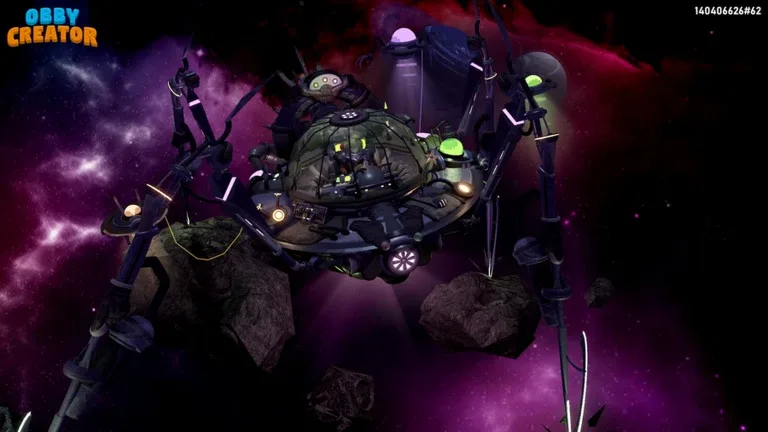
How to Change Skybox and Atmosphere in Obby Creator
Learn how to customize your skybox, clouds, and lighting in Obby Creator to create the perfect atmosphere for your Roblox obby.
Published: Obby Creator Wiki Editorial Team
Table of Contents
Accessing Skybox and Advanced Settings
To begin customizing the visual aesthetic of your creation in Obby Creator, you first need to ensure you have the necessary permissions. The game’s advanced customization suite, which includes skybox configuration, lighting, and environmental effects, is locked behind the "Advanced Tools" gamepass.
Once you have unlocked these tools, you can access the "Advanced Settings" menu within the building interface. This central hub allows you to manipulate the world's appearance, moving beyond the default settings to create a unique experience for your players. Whether you want a bright, sunny day or a moody, atmospheric environment, the controls are located under the "Sky" and "Lighting" tabs.
Customizing Your Skybox Appearance
The skybox is the most impactful element when setting the "vibe" of your obby. In the "Sky" section of the Advanced Settings, you will find the "Appearance" controls. Here is how you can modify the sky:
Skybox Selection: You can toggle through different pre-set skybox textures. Options like "Dusty Clouds" or other environmental themes allow you to instantly change the horizon and background of your map.
Celestial Bodies: You have the choice to enable or disable the Sun and Moon. Disabling these is often useful if you are creating an indoor map or a fantasy setting where the traditional day/night cycle doesn't fit the aesthetic.
According to community reports, experiment with these settings in tandem with your floor colors to ensure the lighting feels consistent. A common mistake builders make is choosing a dark, stormy skybox while keeping the floor color extremely bright, which can make the map look visually disconnected.
Managing Clouds and Weather Effects
Beyond the static skybox, Obby Creator provides dynamic cloud controls that add depth to your environment. These are located in the "Clouds" subsection of the Advanced Settings menu:
Cloud Density: This slider dictates how "thick" or voluminous the clouds appear. A setting closer to 1 will fill the sky with heavy clouds, while 0 will leave the sky clear.
Cloud Cover: This controls the spread of the clouds across the horizon. By balancing cover and density, you can create anything from a light, wispy atmosphere to a heavy, overcast look.
Color Customization: You are not limited to white clouds. You can change the color to match your skybox—for instance, using deep purples or oranges for a sunset or alien planet theme.
Unlike the static skybox, these clouds feature movement, which brings a sense of life to an otherwise stationary obby. Keep in mind that high cloud density combined with complex lighting effects may impact the visual clarity of your platforming obstacles, so test your map frequently.
Enhancing Atmosphere with Lighting Effects
Lighting is the final piece of the puzzle. Even with a great skybox, your map may feel flat without the right lighting configuration. In the "Lighting" tab, you can adjust:
Time: Position the sun or moon to control shadow length and direction.
Fog: Adjust the "Distance" to create a sense of mystery or scale, and set the "Color" to blend the horizon into your skybox.
Depth of Field: Use this to blur distant objects, which helps focus the player's attention on the immediate path ahead.
Lighting Effects: Choose from modes like "Black + White" for a retro feel, or "Dark" for horror-themed levels.
Note that the "Dark" setting is extremely intense. If you choose this, ensure your platforms are clearly visible, perhaps by using neon materials or bright colors, as players may struggle to navigate without external light sources.
FAQ: Common Questions About Obby Creator Visuals
Do I need a gamepass to change the sky?
Yes, the Advanced Settings menu, which contains the options for skybox, lighting, and cloud customization, requires the "Advanced Tools" gamepass.
Can other players see my custom skybox?
Yes, the skybox and lighting settings you apply in Advanced Settings are server-side changes, meaning all players who join your obby will see the same atmosphere you have designed.
Why are my clouds not moving?
If you have enabled clouds in the Advanced Settings, they should move automatically. If they appear static, check if you have toggled the "Enabled" setting off and on again, or ensure your game version is fully updated.